Sonic Pico Park Controls: Inputs, Spin Dash and Controllers
Sonic Pico Park controls for PC, Switch, PS5 and Xbox: the Spin Dash input, jump, flight stop, glide hold, rail dismount and the best controller setup.
SONIC PICO PARK uses a small control set: move, jump, Spin Dash, and a context action for flight, glide, and rail dismounts. The game shows the correct prompt for your device on screen, so the exact button depends on the platform and the controller you are using.
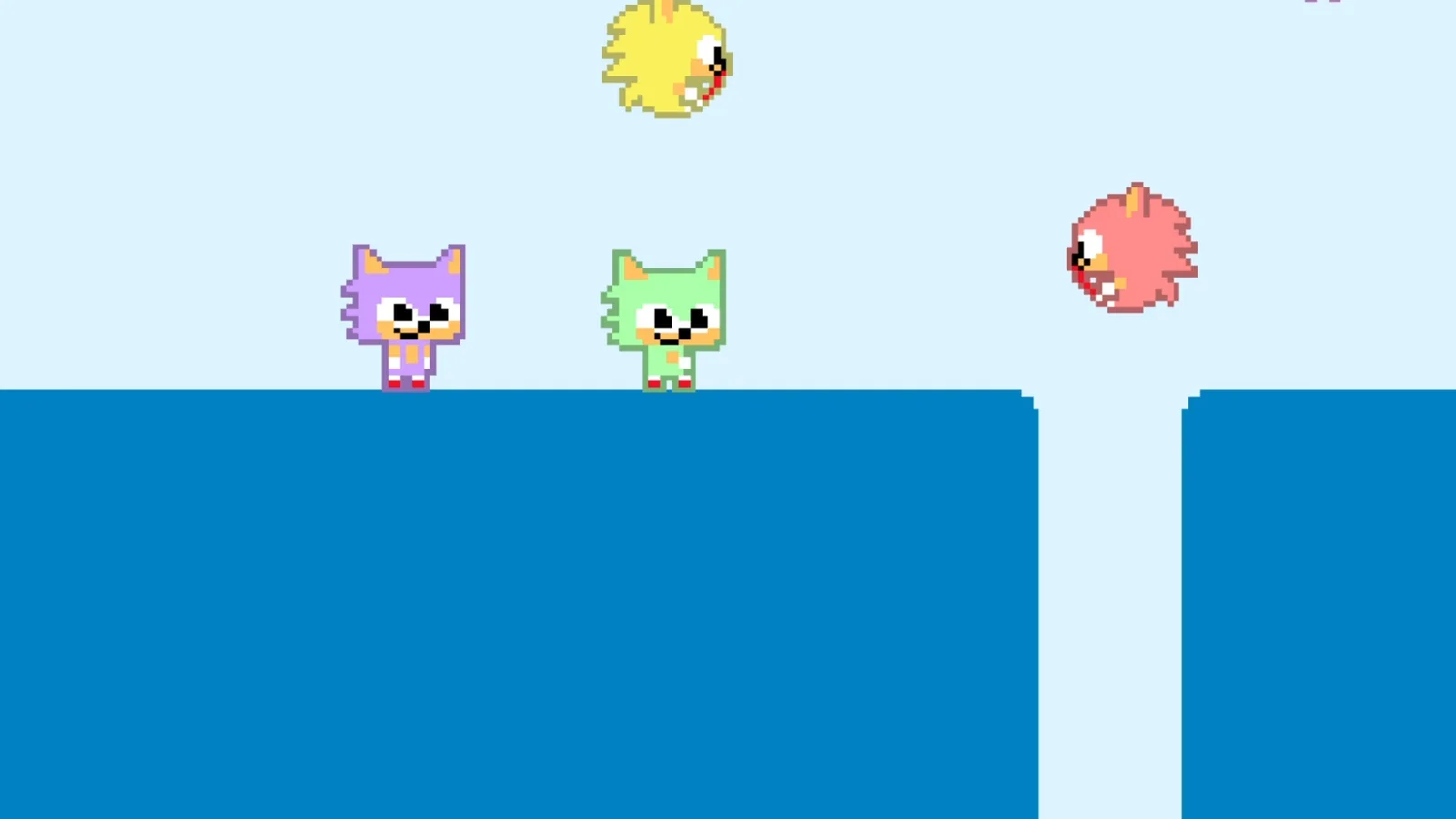
The important thing is not the button map. It is the timing: the dash is charged, the flight is stopped, the glide is held, and the rail is dismounted. Those four actions cover every character-specific input in the campaign.
The game prints the active device's button in the tutorial prompts. If you are switching between keyboard and gamepad, the prompt changes with the device.
The core controls
| Action | Input | When it matters |
|---|---|---|
| Move | Left stick or directional input | Every room |
| Jump | Jump button | Every room |
| Spin Dash | Charge with the up direction, release to launch | Cracked walls, enemies, gaps |
| Stop flight | Prompted button while airborne | Tails, Cream, Charmy, Rogue |
| Glide | Hold jump while airborne | Knuckles |
| Dismount rail | Prompted button while riding | World 10 |
| Pause | Menu button | Any time |
The Spin Dash is the only input with a charge. Hold the up direction to rev, release to launch. The dash is directional: the character launches in the direction they are facing, not the direction of the stick at release. Turn first, then charge.
Spin Dash in detail
The Spin Dash is the most important input in the game. It has three uses and one failure mode.
- Break. A charged dash breaks cracked blocks. The cracked texture is the visual tell.
- Attack. A dash hits Badniks and other enemies.
- Traverse. A dash covers more distance than a jump, which matters on ramps and rails.
- Failure mode. Charging at a ledge launches you into the gap.
The charge time matters. A short tap produces a weak dash that does not break a wall. A full charge produces the fastest launch. The character's rev animation is the tell: if the character is not visibly revving, the dash is not charged.
Flight controls
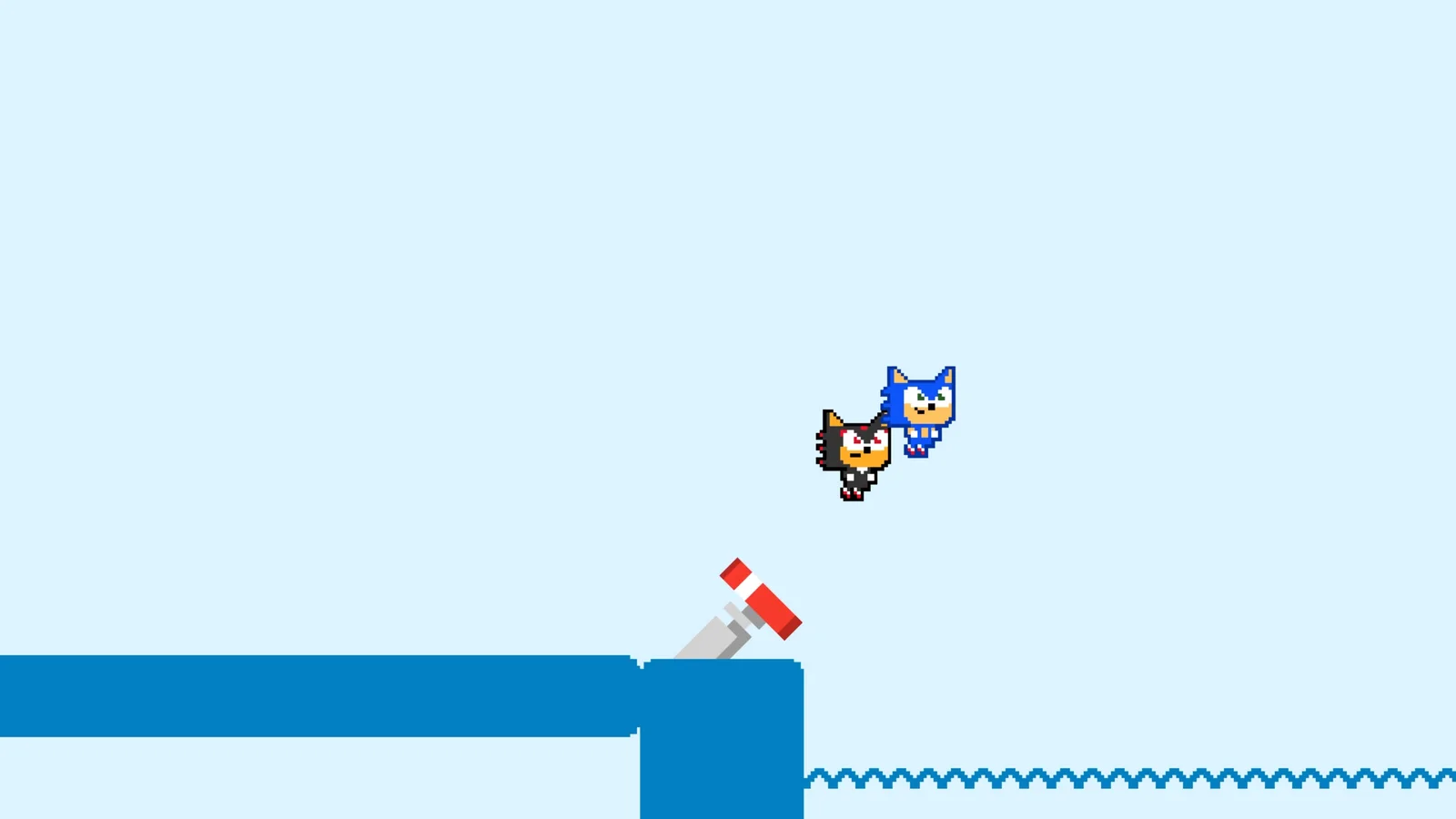
Flight starts from a jump. While airborne, the character hovers and moves horizontally. The game shows a stop-flight prompt; pressing the prompted button ends the flight and drops the character.
The flight has a limited duration. A solo flight crosses a wider gap than a carry. The stop prompt is the skill: stop early enough to land on the platform, not so early that you drop into the gap.
The button label varies by platform. On Xbox-style pads the prompt is A; on Nintendo it is the right face button; on PlayStation it is the cross button. Read the label rather than memorizing a key.
Glide controls
Knuckles' glide is a held jump. Jump, then hold the jump button while airborne. The glide moves forward and descends slowly. Release the button to stop gliding.
The glide is not a lift. It cannot gain altitude, so it is the wrong tool for a ledge above the group. Use a spring or a stack to gain height, then glide across.
Rail controls
World 10 introduces rails. The character rides the rail automatically, and the game prints a dismount prompt. Press the prompted button to hop off.
The dismount is a timing action. Dismount too early and you land in a gap; dismount too late and you ride into a hazard. The safe habit is to dismount at the first platform that looks stable, not the last possible moment.
Keyboard and controller on PC
The Steam version supports keyboard and gamepad, including mixed input in a local session. A group of eight can use four gamepads and four keyboards, which is the cheapest way to fill a couch lobby.
For a single player, a gamepad is the better choice. The analog stick gives smoother movement for the rail sections, and the face buttons are easier to reach for the dash and jump. A keyboard works, but the digital direction input makes the charge timing less forgiving.
The game does not require a specific controller. Xbox, PlayStation, and Switch Pro controllers all work on PC, and the on-screen prompts adapt to the active device.
Controller setup for a local group
- Label the controllers. The lobby assigns players in join order, and a swapped pad causes confusion.
- Charge the pads. A wireless controller that dies mid-stage drops the player from the lobby.
- Use wired where possible. Wireless interference in a room with eight controllers is real.
- Keep the prompts visible. The stop-flight and dismount prompts appear on screen; a player who is looking at their controller will miss them.
The local co-op guide → covers the full eight-player setup. The abilities guide → explains which characters use which context action.
Accessibility and remapping
The game does not advertise a deep remapping menu. The prompts are device-aware, and the control set is small enough that a player can learn it in the first world. If a player needs a different layout, the platform's system-level controller remapping is the most reliable option.
The small control set is an accessibility strength: there are no combos, no motion controls, and no rapid button mashing. A player who can move and jump can play every character; the flight and glide add one held button.
Official source: SONIC PICO PARK official site ↗
Official source: Steam store page ↗
MonsterVine's review ↗ describes the control pacing. Siliconera ↗ covers the Spin Dash integration. The Nintendo product page ↗ lists the platform release.
FAQ
How do you Spin Dash in Sonic Pico Park?
Charge with the up direction, then release to launch. A full charge is needed to break cracked walls.
How do you stop flying?
The game shows a stop-flight prompt while airborne. Press the prompted button to drop.
How do you glide with Knuckles?
Jump, then hold the jump button while airborne. Release to stop gliding.
Can you play Sonic Pico Park with a keyboard?
Yes, on PC. The Steam version supports keyboard and gamepad, including mixed input in local play.
Can you remap the controls?
The game has a small control set and device-aware prompts. For a custom layout, use the platform's system-level remapping.